Help
How to setup speaker’s voice
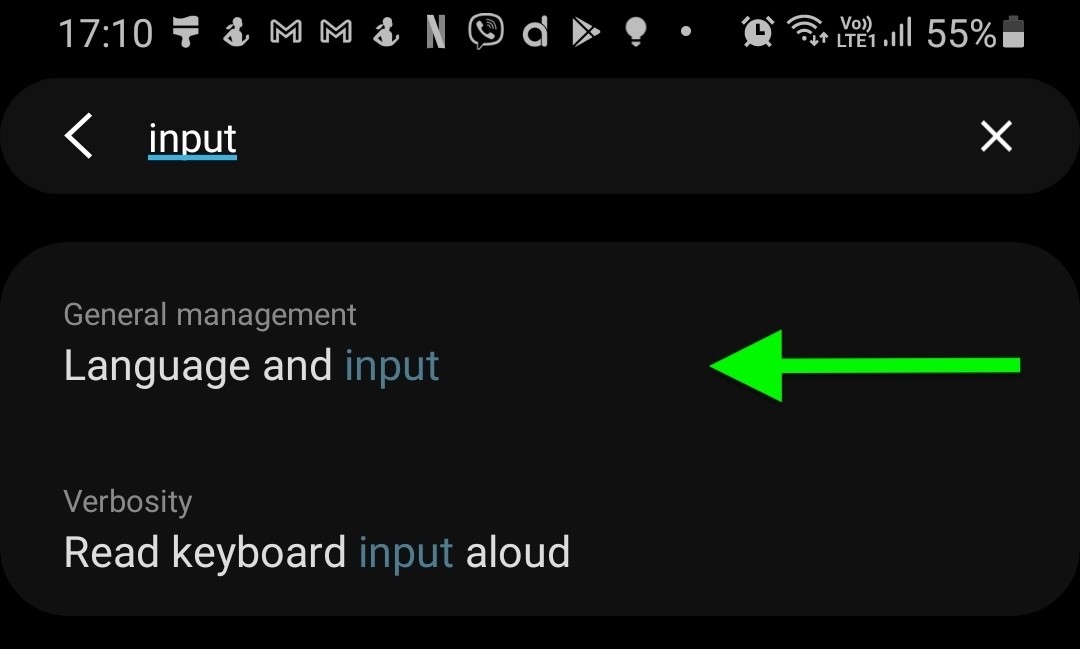
Step 1: Search for "Language and input" in the Settings menu
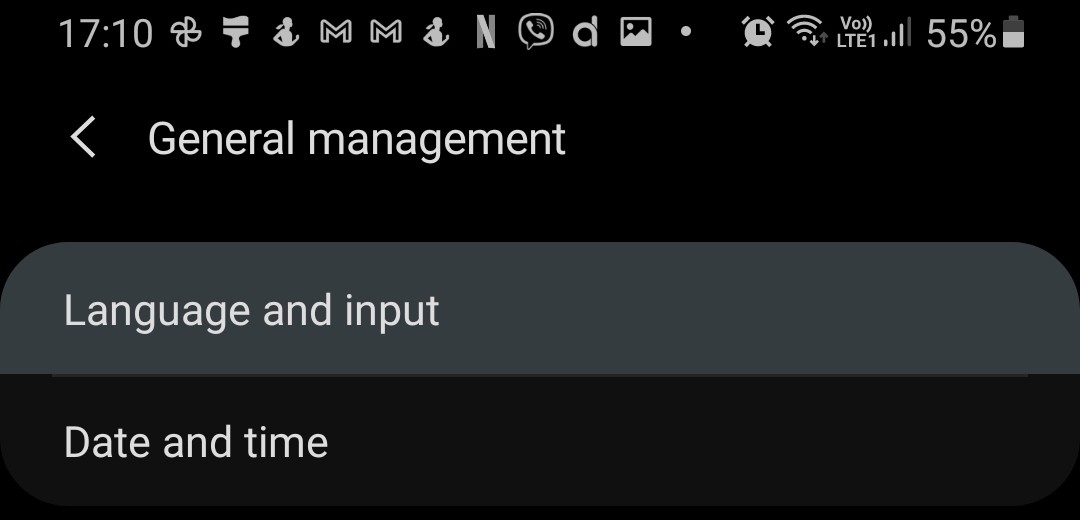
Step 2: Select "Language and input"
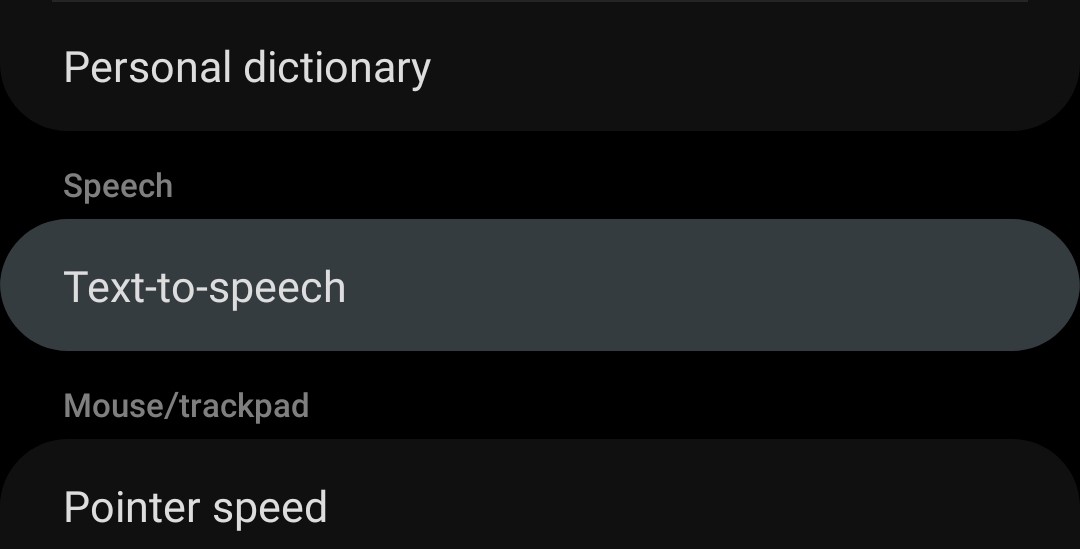
Step 3: Find the "Text-to-speech" option and select it
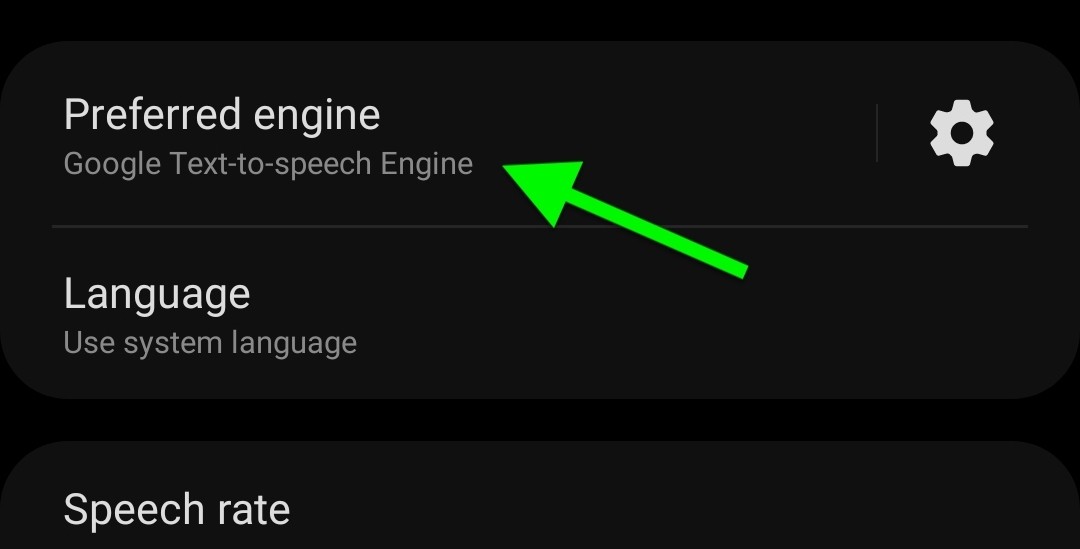
Step 4: Inspect the "Preferred engine" option, if something other than "Google Text-to-sppech Engine" is activated, click on the "Preferred engine" text. (Note: not the cog icon!)
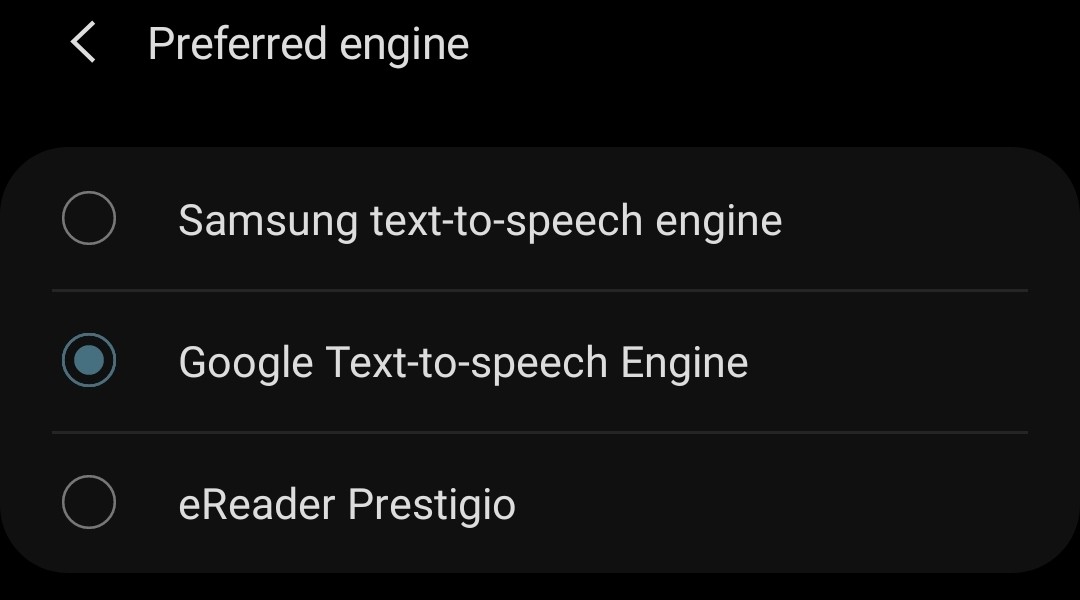
Step 5: If not "Google Text-to-sppech Engine" is activated select it from the list
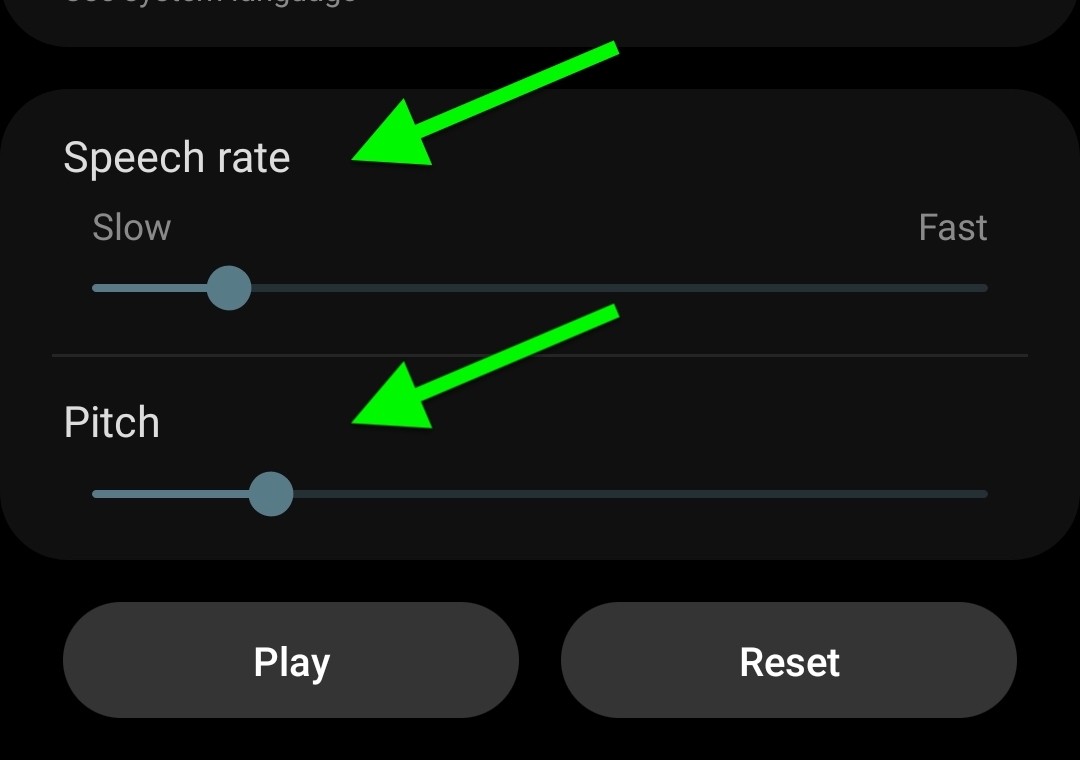
Step 6 (optional): Once "Google Text-to-sppech Engine" is activated, click on the play button on the bottom of the page to preview the current settings and tweak it to your liking.
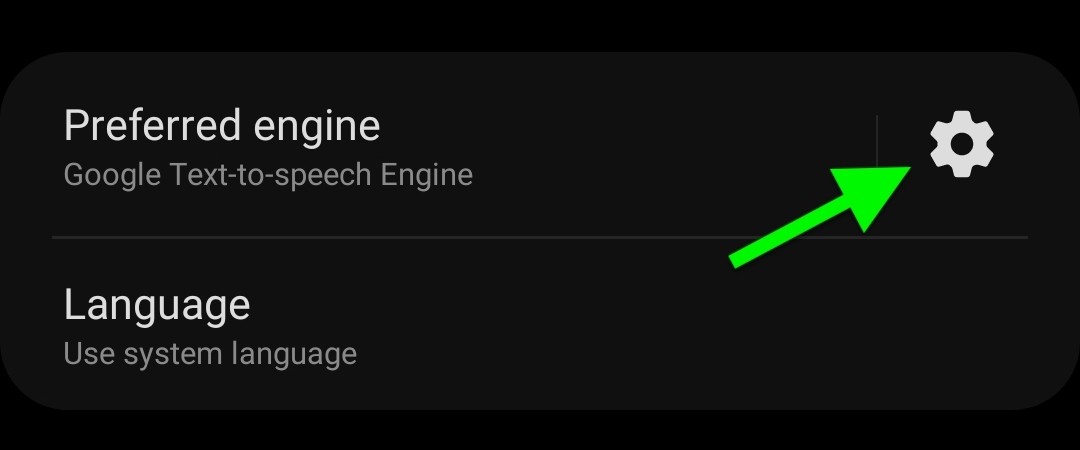
Step 7 (optional): You can change the voice all to gether, by clicking the "cog" icon next to the "Preferred engine" text.
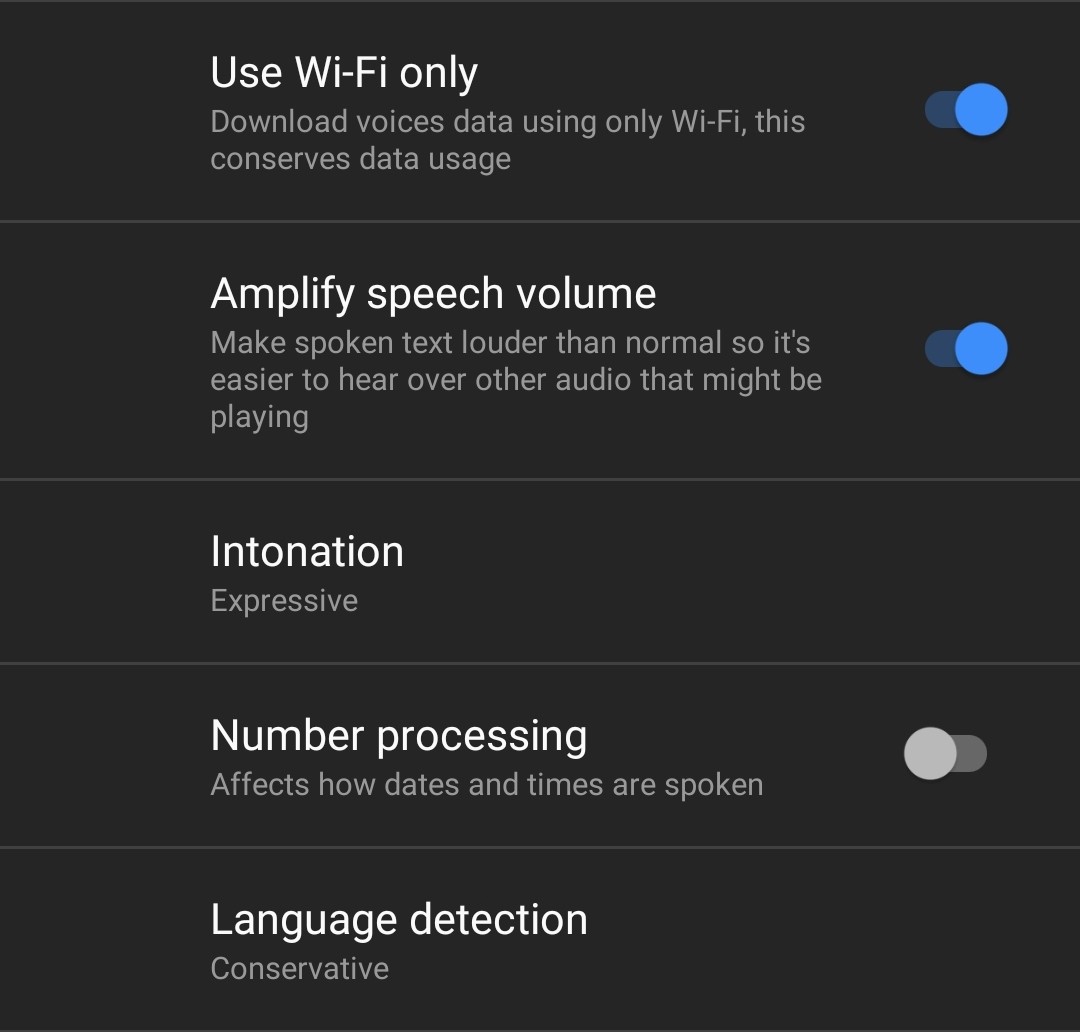
Step 8 (optional): These were the settings worked for us the best. Of course this is just a recommendation, please tweak it to your preference.
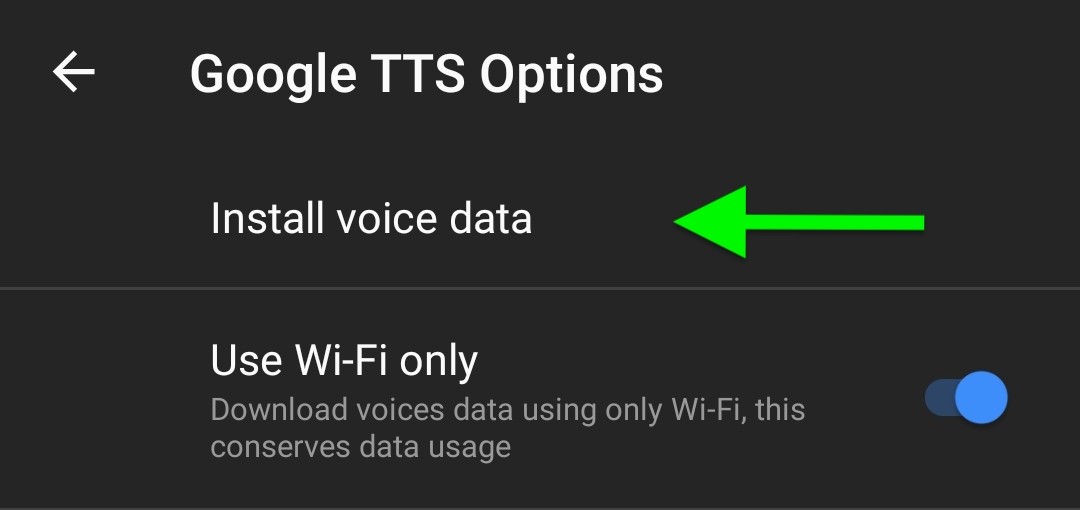
Step 9 (optional): You can download new languages and different voices by selecting the "Install voice data" option.